App
Your own AI secretary, running on your own computer

Reads your email, replies to people you know, says no politely to people you don't, emails you a summary at end of day. The AI runs locally. Nothing leaves your machine except to talk to your mail provider.
The first AI assistant that cannot be jailbroken.
Other AI assistants ask the AI itself whether a request is safe. This one does not. The rules that stop attackers are plain code — not the AI. Backed by 6 innovations →
What it does
- Replies to your contacts. Refuses everyone else.
- Books and changes calendar events when someone in your contacts asks.
- Answers questions, reads PDFs, looks things up on the web — just email the secretary directly.
- Emails you a short summary at end of day. Asks before anything risky. Quiet hours keep it silent overnight.
Install
0. Pick which Gmail the secretary will use
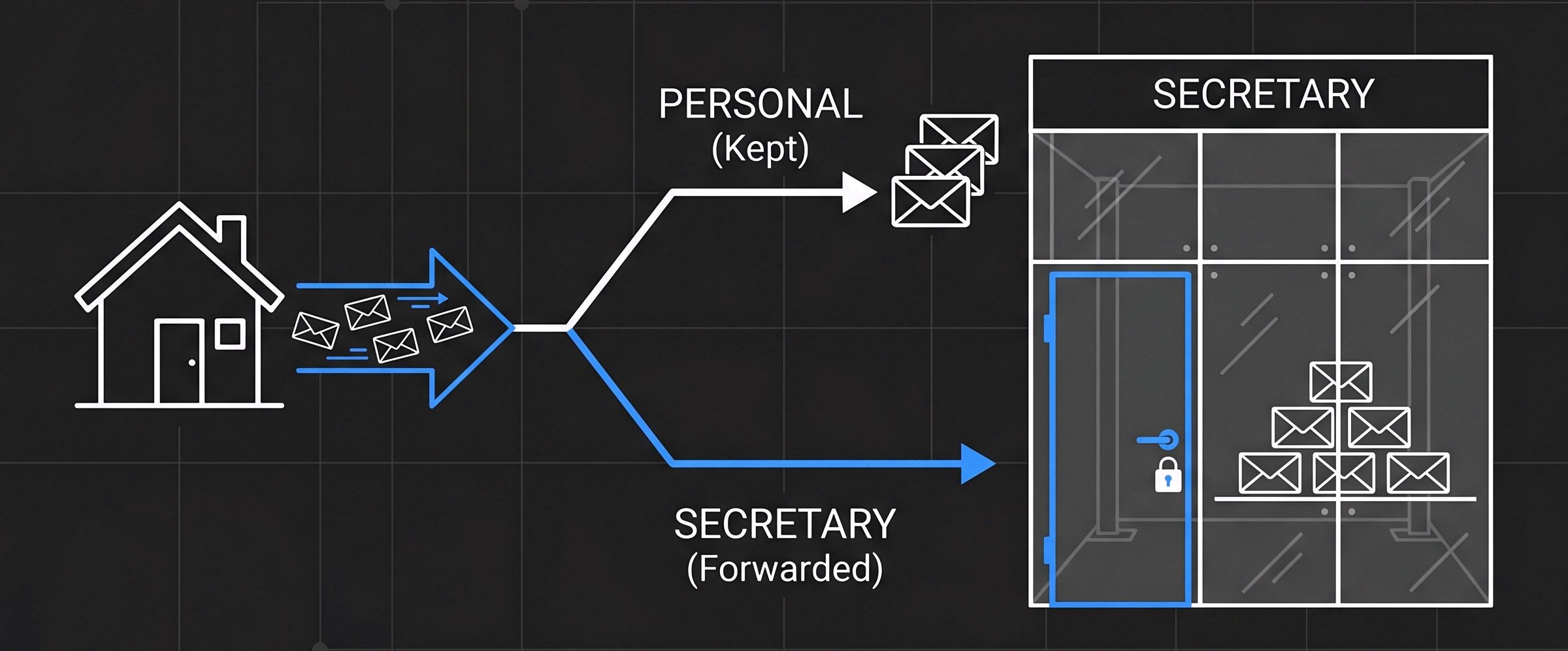
Recommended: create a new dedicated Gmail account (e.g. yourname-secretary@gmail.com) at accounts.google.com/signup, then forward your personal mail to it. The secretary works entirely through this mailbox — your original inbox, contacts, and calendar stay out of reach.
Your existing Gmail works too, but the secretary then has full access to everything in it. A dedicated mailbox is simply zero-trust thinking taken one step further: most apps assume your computer is safe — Enclawed doesn't, so even a compromised machine can't reach your real accounts.
1. Get a Google app password
Open myaccount.google.com/apppasswords in your browser. In the App name box type Enclawed Secretary. Click Create. Google shows you a 16-letter password in a yellow box — copy it.
If Google says "the setting you are looking for is not available," turn on 2-Step Verification first — Google guides you through it in about two minutes. Works on Gmail, iCloud, Fastmail, Yahoo, Proton. Microsoft 365 / Outlook / Hotmail do not work.
2. Open a terminal and paste the install command
On Windows: press the Windows key, type PowerShell, press Enter.
On macOS: press Cmd + Space, type Terminal, press Enter.
A black window opens. Click inside it, copy the matching command below, paste it into the window, press Enter.
bash <(curl -fsSL https://www.enclawed.com/enclawed-apps/install.sh) secretaryirm https://www.enclawed.com/enclawed-apps/install.ps1 | iex; Install-EnclawedApp secretaryThe installer downloads Node, Ollama, and the AI model. About 15 minutes, about 25 GB of disk.
3. Answer the prompts
The installer asks you, in order:
- Your email address.
- The 16-letter password from step 1.
- What the secretary should be called (default: Secretary).
- An optional one-sentence persona (e.g. "Cheerful, decisive, never apologetic."). Press Enter to skip.
- How it should ask you for approval — popup (easiest), email, auto-detect, or terminal. Press Enter to pick popup.
That's it. The secretary is now running in the background. It will start by itself every time you log in.
Try it out
- Send yourself an email from an address that is NOT in your contacts. Within a minute the secretary replies with a polite refusal.
- Add that address to your contacts. Send another email. This time the secretary writes a real reply.
- Ask it a question. Email yourself "What's the weather in San Francisco today?" — you get the actual answer.
- Book a meeting. From a contact, email "Can we meet Thursday at 3 PM for 30 minutes?" — the event lands on your calendar and the reply confirms.
For the fellow nerds
Everything below assumes you want the deep version: how the agent stays secure, what protocols it speaks, which tools it admits, how the audit chain works, every command to manage the running service, and the troubleshooting catalog. None of it is required to use the secretary — the install flow above is self-contained.
Hardware requirements
The default Ollama model is qwen2.5:32b-instruct at Q4_K_M — about 19 GB on disk, about 21 GB in memory at runtime. That model is the realistic floor for the secretary's tool-call + multi-step reply discipline to work reliably (tool calls actually fire, dates resolve correctly, reply branches don't blend, the deferral / placeholder / hedge-filler quality guards rarely trigger). What you need to run it smoothly:
| Tier | PC (Windows / Linux) | Mac (Apple Silicon) | First reply |
|---|---|---|---|
| Recommended | 24 GB-VRAM NVIDIA (RTX 3090 / 4090 / 5090 / A6000 / RTX 6000 Ada) or AMD RX 7900 XTX (24 GB, ROCm) | M3 Max / M4 Pro / M4 Max with ≥ 36 GB unified memory | < 1 s – 2 s |
| Workable | 12–16 GB-VRAM card (RTX 3060 12GB / 4060 Ti 16GB / 4070 12GB) + 32 GB system RAM | M2 Max / M3 Pro / M4 with 32 GB unified memory | 2–5 s |
| CPU-only / minimum | Any modern CPU (Ryzen 9 / Core i9) + 32 GB RAM | M1 Pro / M2 with 16 GB unified — drop to qwen2.5:14b-instruct |
30 s – 2 min |
| Not supported | — | Intel Macs (no Metal acceleration) | minutes |
All tiers: 25 GB free disk for model weights + cache. Below the Workable line, set ENCLAWED_SECRETARY_DRAFT_MODE=review and --hitl-channel=email so every outbound write asks before executing.
Smaller models, if you have to
The model size affects only the LLM accuracy, not the runtime guardrails. You can drop to a smaller model by editing the llm.model field in app.config.json:
- 14 B (
qwen2.5:14b-instruct, ~9 GB) — works. Slight drop in reply quality vs. 32 B; tool selection is still correct in the majority of cases. The deferral / placeholder / hedge-filler quality guards will trigger more often than at 32 B but generally recover on the one retry. - 7–8 B (
llama3.1:8b,qwen2.5:7b-instruct, ~5 GB) — will compose readable English, but routinely ignores calendar tools when it should call them, hallucinates dates, and the quality guards trigger frequently. Acceptable for "auto-refuse strangers + EOD summary only" deployments; not recommended if you want actual calendar bookings to land correctly. - 70 B+ (
llama3.3:70b, ~40 GB) — behaves like a frontier hosted model, at the cost of two 24 GB GPUs or a Mac Studio with 64 GB+ unified memory.
GPU acceleration probe
The installer probes Ollama right after the model pull and reports whether it landed on the GPU or fell back to CPU. You will see one of these lines near the end of the install run:
✓ Ollama is using the GPU for inference (100% GPU).— you are good; expect first-reply latency under a second.! Ollama is using CPU only (100% CPU) — inference will be 10–50× slower.— the install continues, but replies will take ~1–2 minutes each. The installer prints platform-specific remediation hints (NVIDIA driver update, ROCm install, WSL2 bridge install, etc.).✓ Ollama processor split: X% GPU, Y% CPU— the model is partially on GPU because your VRAM cannot fit the whole thing. Acceptable; first-reply latency will be a few seconds. Drop to a smaller model (see above) if you want fully-GPU.
If the probe itself failed (e.g. Ollama daemon down at probe time), the installer prints the exact command to re-check manually: ollama run <model> 'hi' && ollama ps. The PROCESSOR column on the second command tells you which backend it loaded on.
Re-running the installer
The installer is idempotent. Re-running the one-liner against an existing install does not wipe your credentials, audit log, or service registration — it picks up where the last run left off. Every step is a no-op when already done: pnpm install reuses the lockfile, the Ollama install short-circuits when present, the app-password prompt is skipped if the OS-keyring entry exists, and the scheduled task / launchd agent / systemd unit is replaced in place. The audit hash chain stays unbroken across upgrades.
If you want a clean wipe-and-reinstall, run the --uninstall command from the Stopping section below first.
What it talks to
The secretary's egress allowlist is closed. Every other host is denied at the dispatch layer; the audit log records the deny. There are exactly five outbound destinations — four IETF-protocol endpoints (one per service) and one loopback address:
| Endpoint | Used for |
|---|---|
imap.gmail.com:993 (IMAPS) |
Read inbound threads, append drafts, manipulate Gmail labels. The mcp-imap-smtp bridge groups messages by X-GM-THRID to preserve Gmail's thread identity end-to-end. |
smtp.gmail.com:465 (SMTPS) |
Send drafts. The bridge fetches the draft's RFC 822 bytes from [Gmail]/Drafts via IMAP and relays them unchanged over SMTP so the Message-ID and threading headers survive. |
https://www.google.com/calendar/dav/<email>/events |
Read upcoming events so contact-reply drafts can ground “sometime next week” in your actual schedule, AND create / update / delete events when an incoming thread carries an unambiguous scheduling intent. The mcp-caldav bridge sends a raw RFC 4791 calendar-query REPORT for reads and PUT/DELETE for writes, all with HTTP Basic auth. Note: Google’s newer apidata.googleusercontent.com CalDAV endpoint refuses HTTP Basic / app-password auth (OAuth only); the legacy www.google.com endpoint still accepts the same app password the rest of the bridge stack uses, for both reads and writes. |
https://www.googleapis.com/ (CardDAV) |
Contact lookup that decides “reply via Ollama” vs. “frozen refusal” before the LLM ever sees the inbound mail. The mcp-carddav bridge uses RFC 6352 CardDAV REPORT (addressbook-query); read-only. |
http://127.0.0.1:11434/api/chat |
Your local Ollama daemon. Drafts compose against this loopback address; nothing leaves the machine to a cloud model, ever. |
All four external endpoints authenticate with the same 16‑letter app password — OAuth is not on the wire. The closed tool surface inside each bridge is narrower than the protocol's full API. From the provider block of enclawed-apps/secretary/app.config.json on through mcp-attested's admission gate, only these tools admit:
- mcp-imap-smtp:
search_threads,get_thread,create_draft,send_draft,modify_thread_labels,mark_thread_seen,get_attachment. Notably absent:delete_message, every other IMAP command. - mcp-caldav:
list_events,get_event,create_event,update_event,delete_event. Full CRUD; every mutation is routed through the bicriterion broker withcap=publishand gated on HITL before it touches the calendar. - mcp-carddav:
search_contacts,list_contacts,add_contact. Read + minimal write (vCard PUT) for the "save this person to my contacts" path; broker-gated. - Web tools (in-process, not MCP bridges):
web_search(DuckDuckGo HTML default, Brave with API key when present),read_url(via r.jina.ai reverse proxy),read_attachment(pdfjs-dist + UTF-8 / Latin-1 text),schedule_followup(persisted reminder store + daily-loop dispatcher).
The provider is host-agnostic by design. Pointing the secretary at Fastmail, iCloud, Yahoo, Proton via Bridge, or a self-hosted Dovecot + Radicale is a one-line config change — nothing in the runtime code is Gmail-specific.
Supported mail providers
The current imap-caldav-carddav provider authenticates over IMAP / SMTP / CalDAV / CardDAV with a single 16-letter app-specific password. Every consumer mail host that still accepts that kind of authentication works out of the box:
| Provider | Status | Where to generate the app password |
|---|---|---|
| Gmail (gmail.com, googlemail.com) | ✓ Supported | myaccount.google.com/apppasswords (requires 2FA) |
| iCloud Mail (icloud.com, me.com, mac.com) | ✓ Supported | appleid.apple.com → Sign-In and Security → App-Specific Passwords (requires 2FA) |
| Fastmail | ✓ Supported | fastmail.com Settings → Privacy & Security → App passwords |
| Yahoo Mail (yahoo.com, ymail.com) | ✓ Supported | Yahoo Account Security → Generate app password (requires 2FA) |
| Proton Mail | ✓ Supported (via Proton Bridge) | Install Proton Bridge locally; it exposes IMAP/SMTP on 127.0.0.1 with its own generated password |
| Self-hosted (Dovecot, Postfix, Radicale, Baikal, …) | ✓ Supported | Use your regular IMAP/SMTP/CalDAV/CardDAV password |
| Hotmail / Outlook / Live (microsoft.com consumer) | ✗ Not supported | Microsoft retired basic IMAP/SMTP authentication for consumer accounts in September 2024. The IMAP server now only advertises XOAUTH2 (OAuth bearer tokens) on the wire; no app-password mechanism is available at the account-security UI. An OAuth-XOAUTH2 provider variant is on the roadmap but is not yet built. |
| Microsoft 365 / Exchange Online (work/school accounts) | ✗ Not supported | Same XOAUTH2-only constraint as Hotmail. Tenant admins can re-enable basic auth on per-mailbox basis but this requires admin control of the tenant. |
If your mail lives on a provider that’s not in this table and accepts IMAP+SMTP basic auth (rare in 2026, but possible), point provider.imap, provider.smtp, provider.caldav, and provider.carddav in app.config.json at their endpoints and try it. The runtime is provider-agnostic; only the credential-acquisition flow is specialised to Google’s app-passwords URL today.
If you want Outlook / Hotmail support specifically, the cleanest path is to forward your inbox into a Gmail or iCloud account that the secretary already handles. That keeps the existing app-password auth intact while letting your existing Microsoft inbox flow in.
Troubleshooting
What to do when the install does not get you to a running secretary on the first try. Each entry below names the exact symptom so you can search this page for the message you see.
The myaccount.google.com/apppasswords page says The setting you are looking for is not available for your account
Why: 2‑Step Verification is not enabled on this Google account. Google only exposes the app-password generator after 2FA is on.
Fix: visit myaccount.google.com/signinoptions/two-step-verification and turn on 2‑Step Verification (any method — phone, authenticator app, security key). Once it is enabled, the app-passwords page becomes accessible.
The installer aborts with Keyring write failed on Linux
Why: the platform’s Secret Service backend (libsecret via gnome-keyring or KWallet) is not installed or no session keyring is running. The installer refuses to fall back to writing the password on disk — that would defeat the keyring guarantee — so it aborts loud.
Fix: on Debian/Ubuntu install gnome-keyring libsecret-1-0; on Fedora install gnome-keyring libsecret; on Arch install gnome-keyring libsecret. Log out and back in (or run dbus-update-activation-environment --systemd DBUS_SESSION_BUS_ADDRESS) so the session keyring picks up. Then re-run the install one-liner.
The installer says Username and Password not accepted after Step 3
Why: the 16‑letter password was typed or pasted with a character substitution (Google’s yellow box font sometimes looks ambiguous: l vs. 1, O vs. 0) or the app password was deleted on the account-security page after generation.
Fix: generate a fresh password at myaccount.google.com/apppasswords, then re-run the install one-liner with --uninstall first to clear the keyring entry, then re-run the regular one-liner to capture the new password.
The installer prints INSTALL ABORTED — integrity check failed
Why: the bytes of the install script you fetched do not match the signature published on enclawed.com. The script may have been tampered with in transit (CDN cache poisoning, modified mirror, URL substitution), or you fetched it from somewhere other than the canonical URL.
Fix: do not proceed past the abort. Open a fresh terminal and re-run the canonical install command exactly as shown above. If the failure repeats, email security@enclawed.com with the symptom and your operating system; do not paste the failing bytes anywhere public.
The audit log shows irreversible.error instead of irreversible.executed
Why: Gmail returned a 2xx response but the expected echo field was missing — for example, create_draft returned ok with no draftId. The secretary refuses to log a write as executed when the host call did not confirm it. This is the F3 closure described in the security section.
Fix: usually transient. The next poll picks the thread up again and tries the create-draft + send-draft sequence afresh. If you see the same thread surface as irreversible.error on three consecutive polls, check the Gmail API quota for your Google Cloud project at console.cloud.google.com/apis/dashboard.
On Windows, npm.ps1 cannot be loaded because running scripts is disabled on this system
Why: the default Windows ExecutionPolicy at LocalMachine scope is Restricted; npm dispatches through npm.ps1 which is blocked. The installer sets ExecutionPolicy Bypass at Process scope at the top of the run, but only inside the PowerShell session it is invoked from.
Fix: close the PowerShell window. Open a fresh PowerShell and run the install one-liner again. If you are running inside a constrained environment (kiosk, group-policy-locked machine), ask your admin to set ExecutionPolicy at CurrentUser scope to RemoteSigned.
On Windows, Ollama installs but the installer says ollama.exe is not on PATH
Why: Ollama’s Windows installer writes its directory to the per-user Path in the registry, but if it landed somewhere other than the canonical install location AND the registry update did not propagate to the current Node process before the next probe, the installer can’t resolve ollama.exe.
Fix: close PowerShell, open a fresh window, re-run the one-liner. The new session inherits the post-install Path. If the failure repeats, install Ollama manually from ollama.com/download and re-run; the installer detects an already-present Ollama and skips its own install step.
The Ollama daemon does not answer on 127.0.0.1:11434
Why: Ollama installed but the background daemon never started. The installer pings the daemon and spawns ollama serve in the background if it is unreachable, but a firewall or anti-virus product can keep the daemon from binding.
Fix: open a new shell and run ollama serve manually; if it errors, the message tells you what is blocking the bind (most commonly a port conflict with a previous Ollama instance still in shutdown). Once ollama serve stays up, re-run the install one-liner.
The secretary keeps replying with the refusal message even to people who ARE in my Contacts
Why: the CardDAV bridge silently returned an empty contact match (different from “the bridge errored” — an error would surface as a contact lookup failed warning in service.log). Most common cause: the bridge connected to Google CardDAV but every contact came back with the displayName populated and the emails array empty, so no sender ever matched. Apple/Google’s vCard export uses the item1.EMAIL “item-group” prefix convention and an old parser without item-prefix handling drops every email.
Fix: first run the probe to confirm:
Test-EnclawedApp secretaryThe CardDAV section should show ✓ Connected. Primary address book has at least N contact(s) with names and emails next to each. If you see names but no email, your installed runtime predates the item-prefix fix — re-run Install-EnclawedApp secretary to pull the latest. If you see ✗ on CardDAV, the bridge cannot reach Google at all — the error message tells you why.
A black cmd.exe window pops up on Windows logon
Why: Windows Task Scheduler used to launch the secretary’s run.cmd directly. Even with @echo off and no output, the kernel allocates a console host for any cmd.exe process, which surfaces as a visible (empty) window.
Fix: already fixed in the installer. Re-run Install-EnclawedApp secretary — the new task action wraps run.cmd in a tiny run.vbs that calls WshShell.Run(…, 0, False). Window style 0 = SW_HIDE; no console window appears at any point. Standard “run silently on logon” pattern.
The secretary runs but never replies to anyone
Why: usually a contacts mismatch. The secretary replies only to senders found in your Google Contacts (the People MCP lookup). If the test email came from an address that is not in Contacts, the secretary correctly delivers the refusal.
Fix: add the test address to your Google Contacts (contacts.google.com), then send a fresh email from that address. The next poll will reply with an Ollama-drafted message. To confirm the path, watch ~/.enclawed/enclawed-apps/secretary/audit.jsonl for an irreversible.executed record with cap: publish.
How it stays secure
In plain English: the secretary cannot lie to you about what it did, cannot be tricked by a strange email into doing something it isn't supposed to, and cannot send mail to the wrong person. Five rules enforce this, called F1 through F5 in the technical paper:
F1 — Gate bypass
Every Google call routes through a single dispatch function. There is no code path that touches Gmail without first being recorded.
F2 — Audit forgery
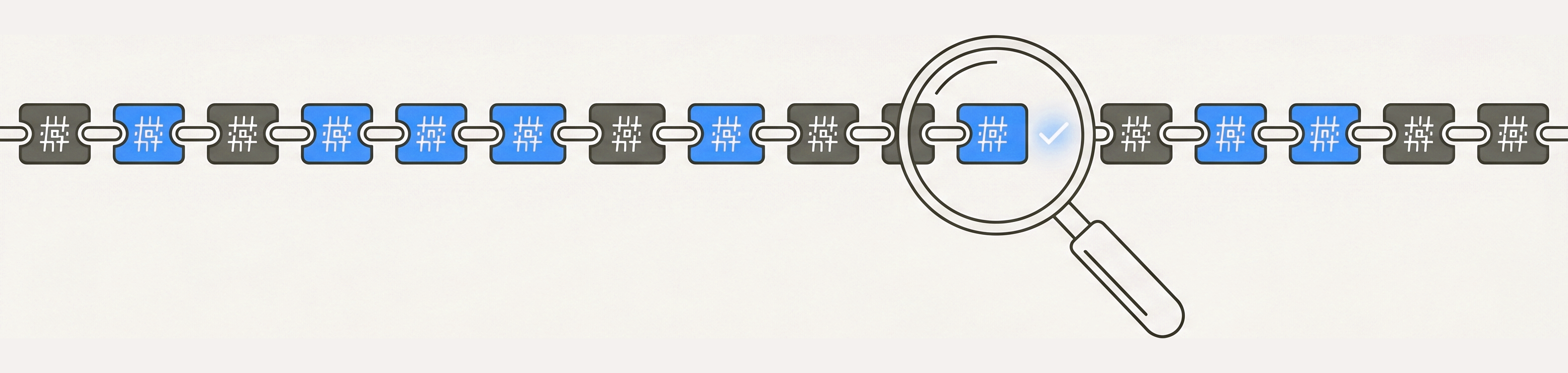
The audit log is a hash chain. Tampering with any record breaks the chain at that record, and the secretary refuses to send its daily summary until the chain verifies.
F3 — Silent failure
If Gmail returns “ok” without the expected echo, the secretary records the call as an error rather than a success. The audit always reflects what actually happened.
F4 — Wrong target
Every outgoing email is bound to a hash of (recipient, subject, body). If Gmail ever echoes back a different recipient, the secretary surfaces the mismatch and refuses to continue.
F5 — Wrong content
A data-loss-prevention scanner reads every outgoing draft. Critical findings (for example, a leaked contact list, or a URL pointing to an unapproved host) are denied automatically.
fetch, not raw network sockets. The recommended production hardening is to run the secretary inside a network namespace pinned to Google hosts only; the app ships an example nftables ruleset alongside the source.
Managing the running secretary
Five operations — status, probe, stop, start, uninstall — symmetric across all three platforms. Status / probe / stop / start keep your credentials and audit log intact; only uninstall wipes everything (service registration, env file, audit log, OS-keyring entry).
Windows (PowerShell)
The PowerShell functions are sourced into the current session by the install one-liner. If you closed the window since installing, re-source them once:
irm https://www.enclawed.com/enclawed-apps/install.ps1 | iexGet-EnclawedAppStatus secretaryTest-EnclawedApp secretaryStop-EnclawedApp secretaryStart-EnclawedApp secretarymacOS · Linux · WSL (Node CLI)
The installer’s flag interface is the single entry point on Unix. The full path to the installer is printed at the end of the install run; ~/.enclawed/enclawed-oss/enclawed-apps/install.mjs is the default location.
node ~/.enclawed/enclawed-oss/enclawed-apps/install.mjs secretary --statusnode ~/.enclawed/enclawed-oss/enclawed-apps/install.mjs secretary --probenode ~/.enclawed/enclawed-oss/enclawed-apps/install.mjs secretary --stopnode ~/.enclawed/enclawed-oss/enclawed-apps/install.mjs secretary --startWhat status reports
The status output answers “is the secretary actually running?” with four lines:
- Service state — loaded / running / not loaded / pid, read from
launchctl liston macOS,systemctl --user is-activeon Linux, orGet-ScheduledTaskon Windows. - Env file — whether
~/.enclawed/enclawed-apps/secretary/.envexists. - Keyring entry — whether the OS keyring still has the app password under the right service+account pair.
- Audit log — record count, and a tail of the last few service-log lines so you can see whatever the runtime printed last.
If you suspect the agent is not running, status is the first command to reach for. A missing service, an empty audit log after a day of activity, or a service-log tail with an error message all answer the question without guesswork.
What probe reports
Probe answers a different question: “are the bridges actually reaching Gmail / Calendar / Contacts?”. It loads each of the three bridges with the credentials currently in your .env + keyring and runs ONE live tool call against each, printing either:
✓ Connected. INBOX sample returned N thread(s).— plus the subject of each. Proves IMAP+SMTP auth works and Gmail responds.✓ Connected. Default window returned N event(s).— plus summary, start, end of each. Proves CalDAV auth works and Google Calendar responds.✓ Connected. Primary address book has at least N contact(s).— plus name + email of each. Proves CardDAV auth works AND that emails are being extracted (the most common silent-failure mode is contacts found but emails dropped due to a vCard format edge case).✗ Bridge returned error: <reason>— the wire-level error from the server. Definitive signal about which bridge is broken and why.
If the secretary is replying to known contacts with the refusal message, the probe is the right command to run — an empty CardDAV result or an email-less contact entry will jump out immediately.
Uninstall (wipes state)
The --uninstall path on the installer does all four things in one call: stop the service, unregister it from the OS, delete the OS-keyring entry holding the app password, and delete ~/.enclawed/enclawed-apps/secretary/ (which includes the audit log).
Run:
bash <(curl -fsSL https://www.enclawed.com/enclawed-apps/install.sh) secretary --uninstallirm https://www.enclawed.com/enclawed-apps/install.ps1 | iex; Install-EnclawedApp secretary --uninstallThe --uninstall command above also deletes the app password from your OS keyring. To fully invalidate it on Google’s side, visit myaccount.google.com/apppasswords and delete the Enclawed Secretary entry from the list.
Structural guardrails (full list)
Hard guardrails sit on top of the model so small-model failure shapes don't reach the principal. These are policy code, not prompt instructions — the LLM cannot weasel past them by phrasing things differently.
- Two-stage reply composition. Stage 1 (tool-use loop) only dispatches actions; the reply text is composed in Stage 2 with NO tools and an explicit "Actions executed (you may acknowledge ONLY these)" block. The model cannot claim "I added it to your calendar" unless a calendar tool call returned
ok=truein this turn's tool-result trail. - Deterministic date extraction.
chrono-nodepre-parses every date/time reference in the inbound email and injects the parsed ISO timestamps into the Stage-1 prompt as a "copy from here, do NOT recompute" block. The model is no longer doing calendar math — just picking from a list. A post-dispatch validator rejects any tool call whosestartsAtIsodoesn't match the chrono candidates (or their date×time cross-product) and surfaces the rejection as a synthetic tool-error the model can recover from on the next iteration. - Server-side write verification.
create_eventdoes GET after PUT against the CalDAV endpoint and refuses to report success unless the event reads back with the expected SHA-256 of (summary, start, end, attendees). Catches the silent-persistence-failure shape that would otherwise leave the principal with a polite "I scheduled it" reply and an empty calendar. - Per-thread tool-call cache. If the LLM re-issues the same
web_search/read_url/read_attachmentwithin a thread, the dispatcher returns the cached result without re-fetching. Keyed on the deterministic signaturename:JSON.stringify(args); lives in theSecretaryRuntimeStatein-memory map for the lifetime of the process. Irreversible writes are deliberately not cached — the broker must always be re-consulted. - NEW-MESSAGE / QUOTED-HISTORY body splitter. The inbound body is parsed into the principal's new message vs. the inline-quoted prior thread (handles Gmail's
>-prefix blocks, Apple Mail "On <date>, <name> wrote:" attributions, Outlook underscore separators + header blocks, the mobile bare-date pattern). The Stage-1 prompt explicitly tells the model to respond to NEW only. - Stage-2 quality retry. The composed reply is checked against three failure shapes: placeholder syntax (
[insert X],<TBD>, "would go here", curly/dollar templates), deferral phrasing ("I'll follow up", "let me check", "circle back"), and vague hedge filler ("typical summer temperatures", "a mix of conditions", "based on available sources", "though specific details were limited"). A hit triggers one retry with both negatives spelled out in the system prompt; on a second hit the original goes through and the log flagsstage-2 quality retry still contains the issuefor triage. - Deferral-and-no-follow-up enforcement. The Stage-1 system prompt has a hard rule: there is NO asynchronous follow-up mechanism unless
schedule_followupwas actually called this turn, so deferral language ("I'll follow up", "let me look into that") is forbidden in replies. The Stage-2 guard above is the enforcement. - Framework DLP scanner (
src/enclawed/dlp-scanner.ts) runs in both directions. Outbound drafts are scanned for the secrets / PII / classification-marker patterns (AWS / GCP / OpenAI / Anthropic / GitHub / Slack / Stripe key shapes; PEM private keys; credit-card / IBAN / SSN shapes; classification banners; distribution caveats). Inbound search snippets and r.jina.ai-fetched page bodies are scanned for the prompt-injection cluster (chat-template markers like<|im_start|>/[INST]/<|system|>from ChatML / Llama / Mistral / OpenAI formats; role-takeover prefixes like "system:" at line start; "ignore previous instructions" / "disregard above" / "forget all" variants; jailbreak markers like "DAN mode" and "do anything now"); critical hits are redacted with[REDACTED]before the LLM sees them. - Bicriterion broker with HITL email channel. Every irreversible action (calendar write, contact add, email send) is classified by an explicit two-axis policy (severity from the DLP scan + origin from the sender identity). Auto-approves for principal-authored intent on routine ops; emails the principal for approval on anything ambiguous; refuses outright on critical DLP. The email-HITL prompt sends a request mail with a fresh correlation token, polls for the principal's reply, and resolves to approve/deny based on the first non-quoted line (YES/Y/approve = approve, NO/N/deny = deny, anything else within timeout = deny). Reminder mail fires at the 5-minute mark; timeout-confirmation mail fires at the deadline so the principal sees the lifecycle in one thread.
- Context-window management. Ollama defaults to
num_ctx=2048, which truncates long threads. The secretary explicitly setsnum_ctx=32768and tracks message-array size; when Stage-1 crosses 80% of the budget, older iterations are collapsed into a deterministic textual "you already ran X and got Y" receipt that preserves the information without burning a second inference for summarization. - Per-thread fresh context. Each thread starts with a brand-new
messagesarray. The Ollama/api/chatendpoint is stateless — the model only sees what's in the current request — so processing thread B has zero context from thread A. The only cross-thread state is the persistent surface (calendar, contacts, audit log), and that's only accessed through broker-gated tool calls.
Egress allowlist (closed)
Every external destination the secretary touches is on a closed allowlist; every other host is denied at the dispatch layer and the deny is written to the audit log. The complete list:
| Endpoint | Used for |
|---|---|
imap.gmail.com:993 (IMAPS) / equivalents for other providers |
Read inbound threads, append drafts, manipulate labels, fetch attachments. The mcp-imap-smtp bridge groups messages by X-GM-THRID on Gmail to preserve thread identity end-to-end. IDLE is restarted every 4 minutes via maxIdleTime so the server-side connection-timeout doesn't silently half-close the socket. A NOOP gates every cached-connection reuse so half-dead TCP states are detected and recovered. |
smtp.gmail.com:465 (SMTPS) / equivalents |
Send drafts. The bridge fetches the draft's RFC 822 bytes from the Drafts folder via IMAP and relays them unchanged over SMTP so the Message-ID and threading headers survive. |
https://www.google.com/calendar/dav/<email>/events (CalDAV) |
Read upcoming events for grounding "sometime next week" against the principal's actual schedule, and create / update / delete events. mcp-caldav sends raw RFC 4791 calendar-query REPORT for reads, PUT/DELETE for writes, HTTP Basic. Note: Google's newer apidata.googleusercontent.com CalDAV endpoint refuses HTTP Basic / app-password auth (OAuth only); the legacy www.google.com endpoint still accepts the app-password for both reads and writes. |
https://www.googleapis.com/ (CardDAV) |
Contact lookup that gates "reply via Ollama" vs. "frozen refusal" before the LLM ever sees inbound mail. mcp-carddav uses RFC 6352 CardDAV REPORT (addressbook-query) for reads and vCard PUT for the add_contact path. |
https://html.duckduckgo.com/html/ |
No-key web search backend. POST query body, parse the result HTML for (title, url, snippet) triples, unwrap DDG's redirect proxy URLs. |
https://api.search.brave.com/res/v1/web/search |
Optional Brave Search backend — selected when BRAVE_SEARCH_API_KEY is set (free tier: 2,000 queries / month, 1 q/s). Structured JSON, higher snippet quality than the DDG HTML scrape. |
https://r.jina.ai/<url> |
Reverse-proxy reader used by read_url. Any web URL is fetched through this one host, the response is clean-markdown body text with scripts / nav / chrome stripped. Free, no key, no signup. Keeps the egress profile narrow — the LLM gets the entire readable web through one allowlisted host instead of an unbounded fetch surface. |
http://127.0.0.1:11434/api/chat (Ollama loopback) |
Local Ollama daemon. Drafts compose against this loopback address; nothing leaves the machine to a cloud model, ever. |
Tool surface (closed list)
From the provider block of app.config.json through mcp-attested's admission gate, the secretary's bridges admit only the tools below. Everything else the underlying protocol could expose is closed at the registry.
- mcp-imap-smtp —
search_threads,get_thread,create_draft,send_draft,modify_thread_labels,mark_thread_seen,get_attachment. Notably absent:delete_messageand every other IMAP verb. - mcp-caldav —
list_events,get_event,create_event,update_event,delete_event. Full CRUD; every mutation goes through the bicriterion broker withcap=publishand is HITL-gated before it touches the calendar. - mcp-carddav —
search_contacts,list_contacts,add_contact. The write path is the minimum vCard 3.0 (FN + EMAIL + optional NOTE) that every major address-book server accepts; broker-gated. - In-process web tools (not MCP bridges) —
web_search(DuckDuckGo HTML default, Brave with API key when present),read_url(via r.jina.ai),read_attachment(pdfjs-dist legacy ESM build for PDF, UTF-8 with Latin-1 fallback for text/*),schedule_followup(append-only JSONL store at~/.enclawed/enclawed-apps/secretary/followups.jsonl+ daily-loop dispatcher).
Audit chain
The audit log at ~/.enclawed/enclawed-apps/secretary/audit.jsonl is the canonical record of what happened. Properties enforced by src/enclawed/audit-log.ts:
- One record per call. Every
dispatchthrough the framework'sSkillGatewrites exactly one record:type("irreversible.proposed" / "irreversible.executed" / "irreversible.denied" / "fs_read.executed" / "egress.deny" / ...),actor,ts,level,payload,prevHash,recordHash. - Hash chain.
recordHash = SHA-256(prevHash || "|" || canonicalize(record)), wherecanonicalizeis deterministic JSON. Tampering with any record breaks the chain at that record. The EOD summary projector recomputes the chain on every run and the secretary refuses to send the digest untilverifyChainreturns clean. - Windowed projection.
projectAuditCountstakes an optionalsinceMslower bound so the EOD reconciliation (in-memory state vs. on-disk record) compares the same window and isn't tripped by restart-skew. - Egress denies are records. If the model coerces the runtime into trying to reach a non-allowlisted host, the egress guard's
onDenyhook writes anegress.denyrecord before throwing. There is no silent egress.
Identities + secrets at rest
Every operator-identity address (the mailbox the secretary signs in as, the human principal it acts on behalf of, every alias the operator considers principal-equivalent) lives in a single OS-keyring entry called secretary-identities — a JSON blob {mailbox, principal, aliases} encrypted at rest under macOS Keychain / Windows Credential Manager / Linux Secret Service. The .env file on disk holds only non-PII configuration (timezone, poll interval, flavor, hitl channel, persona). The app-specific password and the optional Brave Search API key live under separate keyring accounts keyed by mailbox. The launcher fetches the identities blob FIRST at start, parses it, sets the env vars in memory only, and then fetches the per-mailbox secrets — in-memory only, never written to disk, never visible in argv, never in a log line.
F1–F5 in detail
The five properties under How it stays secure are short summaries. The technical paper at arxiv.org/abs/2605.24248 formalises each one with the threat-model assumptions, the runtime invariants, and the audit-chain compositions. The enforcement code:
- F1 (Gate bypass) — the SkillGate is the single entrypoint for every external call. Every bridge dispatches through it; there is no
fetchin the secretary's code path that doesn't go through the egress guard's wrappedglobalThis.fetch. In enclaved flavor the guard freezes the wrapper after bootstrap so module code cannot reassign it. - F2 (Audit forgery) — the hash chain above. The chain-hash short tag is included in the EOD summary so the principal can verify externally.
- F3 (Silent failure) —
create_eventdoes GET-after-PUT;send_draftverifies the appended draft's content-SHA matches the expected hash;add_contactchecks the createVCard response for theLocationheader. Every bridge'sok=truepath is conditional on an end-to-end echo of the requested mutation. - F4 (Wrong target) — outbound writes bind the call to a hash of (cap, target, args). The broker's target patterns (
gmail:send/<draftId>#sha256=<hash>;to=<recipient>,calendar:event/<uid>#sha256=<hash>, etc.) include the recipient in the target string. A target-recipient mismatch on the echo refuses the call. - F5 (Wrong content) — the DLP scanner runs on every outbound body. Critical findings hard-deny via the broker. The same scanner runs on inbound search results and fetched page bodies to neutralize prompt-injection primitives before the LLM sees them.
fetch, not raw network sockets. The recommended production hardening is to run the secretary inside a network namespace pinned to the allowlist hosts only. An example nftables ruleset ships alongside the source.
Source, framework, extensibility
- Source. The secretary lives at
enclawed-apps/secretary/in theenclawed-osstree. Meant to be readable end-to-end as the canonical example of building an enclawed application. - Installer template. The installer is generic. Any future app with an
app.config.jsonuses the same one-line install. Only the per-provider authorisation flow is provider-typed; today the only provider isimap-caldav-carddav(works against Gmail, Fastmail, iCloud, Yahoo, Proton via Bridge, or any self-hosted IMAP+CalDAV+CardDAV stack with one app-password). GitHub, Slack, and others are planned. - Framework SDK. The
enclawed/frameworksubpath the secretary imports is the same SDK any third party uses to build their own enclawed-backed application. Capability primitives (CAPABILITY,makeCall,SkillGate), broker shapes (BrokerRequest,BrokerDecision), DLP entry points (dlpScan,dlpRedact), and bridge loaders (loadImapSmtpBridge,loadCalDavBridge,loadCardDavBridge) are all exported. - Paper. arxiv.org/abs/2605.24248 — "Architectural obsolescence in agentic-AI runtimes" formalises the threat model and the F1–F5 properties the secretary realizes.